
Intitle Ip Camera Viewer Intext Setting Client Setting Install Fixed !exclusive! Review

The search parameters "intitle:ip camera viewer" and "intext:setting client setting install fixed" typically relate to finding configuration pages for network-attached cameras, often associated with legacy or common security software Exploit DB Setting and Client Configuration Accessing Settings

: Most cameras allow access through a web browser by entering the camera's local IP address into the URL bar. Navigate to Setting > Basic > Network to find specific configuration options. Client Software Installation

: Dedicated viewer applications often require installing specific "Client" or "Config" utilities from the manufacturer (e.g., Honeywell ConfigTool or IPCManager). Fixed (Static) IP Setup

: To ensure the camera remains at a consistent address, you must "fix" the IP by switching the network settings from DHCP to Static

. Enter a manual IP address within your router's subnet range (e.g., 192.168.1.110 Typical Default Credentials

Many older IP camera systems (like TP-LINK, Zavio, or Intellinet) often found with these specific search strings use the following default logins: Exploit DB Zavio / TP-LINK : admin / admin Intellinet : admin / 1234 Hikvision (older) Adding a Camera to a Viewer App How to change the IP address of an IP security camera

Unlocking the World of Open IP Cameras: A Deep Dive into Advanced Viewing Techniques

The search string "intitle ip camera viewer intext setting client setting install fixed" is a powerful dork used by security researchers and enthusiasts to locate specific web-based interfaces for IP surveillance systems. These parameters target internal configuration pages that often bypass standard login screens, revealing the inner workings of remote monitoring setups.

Whether you are a professional securing your own network or a hobbyist learning about IoT vulnerabilities, understanding how these systems are structured—from the client settings to the fixed installation protocols—is essential. Understanding the Dork Components

To understand why this specific search is so effective, we have to break down the technical triggers:

intitle:"ip camera viewer": This filters results to pages that explicitly identify as a viewing console.

intext:"setting" & "client setting": These keywords target the administrative backend. Most consumer-grade cameras use "Client Settings" to define how the browser interacts with the hardware (stream quality, bitrate, and frame rate).

intext:"install fixed": This typically refers to the installation of ActiveX controls or Java applets required to render the video feed in a browser. "Fixed" often relates to a fixed IP address configuration or a permanent mount setting. The Architecture of a Web-Based IP Camera

When you land on a page matching these criteria, you are seeing the bridge between hardware and software. Here are the core components usually visible: 1. The Client-Side Environment

Most older or industrial IP cameras require a specific environment to run. This is where the "install" prompt comes in. The camera serves a small executable or plugin to the user's browser to decode the H.264 or MJPEG stream. In modern setups, this has been replaced by HTML5, but thousands of "fixed" legacy systems still rely on these manual installations. 2. Network Configuration (Fixed IPs)

A "fixed" installation is standard in professional security. Unlike your home Wi-Fi devices that might change IP addresses via DHCP, a professional IP camera viewer is usually mapped to a static (fixed) IP. This ensures that the client setting on the NVR (Network Video Recorder) never loses the handshake with the camera. 3. Administrative Client Settings Inside the "Client Setting" menu, users typically find:

Media Port / HTTP Port: The gateways through which data travels.

Buffering Options: Adjusted based on the "fixed" bandwidth available at the installation site.

Overlay Settings: Adding timestamps or "fixed" labels (e.g., "Front Gate") to the video feed. Security Implications: Why This Matters

The reason this specific keyword string is popular in the cybersecurity community is that it often reveals unprotected devices.

Many installers set up a camera, configure the "fixed" IP, and forget to change the default administrative credentials. By searching for these specific strings, one can find cameras where the "Setting" page is globally indexed by search engines. This exposes everything from private warehouses to baby monitors to the public web. Best Practices for Your Own "Fixed" Installation

If you are installing an IP camera viewer system, follow these steps to ensure you aren't the subject of a search query:

Change Default Ports: Don’t use 80 or 8080. Move your web interface to a non-standard port.

Disable Universal Plug and Play (UPnP): This prevents the camera from "talking" to your router and automatically opening holes in your firewall.

Use a VPN: Instead of making your "IP Camera Viewer" page public, access it through a secure VPN tunnel.

Update Firmware: Manufacturers frequently release patches to hide "setting" pages from being indexed by search engine bots. Conclusion

The world of IP surveillance is a balance between accessibility and security. While the string "intitle ip camera viewer intext setting client setting install fixed" serves as a fascinating window into how these devices are managed, it also serves as a stark reminder of the importance of robust configuration.

Always ensure your "fixed" installations are behind a firewall, and your "client settings" are locked behind more than just a default password.

The specific search query "intitle:ip camera viewer intext:setting client setting install fixed" is often used by security researchers and IT professionals to locate web-based interfaces for IP camera management software. Specifically, this string targets the configuration pages of networked video surveillance systems that may have been left exposed to the public internet. Target specific viewer software (e

If you are a system administrator or a home user looking to properly install, fix, and secure your IP camera client settings, this guide will walk you through the essential steps to ensure your feed is functional for you—and invisible to everyone else. Understanding the IP Camera Viewer Architecture

Most IP camera systems operate on a client-server model. The IP Camera Viewer is the client-side interface (often a web browser or dedicated software) that communicates with the camera hardware or a Network Video Recorder (NVR).

When you see terms like "Client Setting" and "Install Fixed," it typically refers to:

ActiveX or Web Components: Plugins required for browsers to render live video.

Static IP Assignment: Ensuring the camera stays at a "fixed" address so the viewer can always find it.

Port Forwarding: The configuration that allows you to view your camera from outside your local network. Step 1: Initial Install and "Fixed" IP Assignment

The most common point of failure in camera setups is the IP address changing. To ensure a "fixed" connection:

Access the Camera Interface: Log into your camera using its default local IP (e.g., 192.168.1.100). Network Settings: Locate the TCP/IP or Network menu.

Static IP: Change the setting from "DHCP" to "Static." Manually assign an IP address outside of your router's normal DHCP range to avoid conflicts.

Save and Reboot: This ensures your "IP Camera Viewer" always points to the same digital location. Step 2: Optimizing Client Settings for Stability

Once the hardware is fixed, you must configure the viewer client for the best performance:

Sub-Stream vs. Main-Stream: For remote viewing on mobile devices, set the client to use the Sub-Stream (lower resolution). Use the Main-Stream only for local recording to save bandwidth.

Buffer Settings: If your video is choppy, increase the "Play Buffer" in the client settings. This adds a slight delay but results in much smoother playback.

Video Encoding: Most modern viewers support H.265. Ensure this is enabled in the settings to reduce data usage by up to 50% compared to the older H.264 standard. Step 3: Fixing Common Connection Issues

If your viewer displays a "Connection Failed" or "Plugin Not Installed" error:

Browser Compatibility: Many older IP camera web interfaces require Internet Explorer mode or specific ActiveX controls. If using Chrome or Edge, install an "IE Tab" extension or use the manufacturer’s standalone desktop client.

Port Mapping: Ensure the HTTP Port (usually 80 or 8080) and the RTSP Port (usually 554) are properly configured in both the camera settings and your router.

Firmware Updates: An outdated camera OS can cause the client software to crash. Always check the "System" or "Maintenance" tab for available updates. ⚠️ Crucial Security Warning: "The Google Dork"

The keyword string you provided is known as a "Google Dork." If your camera’s "Setting" page is indexed by search engines, it means anyone can find and potentially control your camera. How to secure your install:

Change Default Credentials: Never leave the username as "admin" or the password as "12345" or "password."

Disable UPnP: Do not let the camera "fix" its own ports. Manually configure them or, better yet, use a VPN to access your home network.

Check Privacy Settings: Ensure "Anonymous Viewing" is toggled OFF in the client settings.

Setting up an IP camera viewer requires a balance between accessibility and security. By assigning a fixed IP, optimizing your client streams, and closing the loopholes that make "Google Dorking" possible, you can create a professional-grade surveillance setup that remains private.

intitle:"ip camera viewer" intext:"setting" "client setting" "install" "fixed"

is a reconnaissance technique used to locate internet-connected cameras that have publicly accessible management pages. These devices are often vulnerable due to default credentials or unpatched firmware. ⚠️ Security Risks Privacy Breach:

Unauthorized individuals can view live feeds of private residences or businesses. Credential Harvesting:

Attackers may attempt to "brute force" the login page to gain administrative control. Botnet Recruitment:

Compromised cameras are frequently drafted into botnets (like Mirai) to launch DDoS attacks. Network Pivoting: Pick 1 or 2

Once a camera is compromised, it can serve as an entry point to the rest of a local network. 🛠️ Remediation & Prevention

If you are an administrator or owner of an IP camera system, follow these steps to ensure your hardware is not discoverable via search engines: 1. Disable Port Forwarding

Avoid using Universal Plug and Play (UPnP) or manual port forwarding to expose the camera directly to the internet. Instead, use a

(Virtual Private Network) to access your local network securely. 2. Update Default Credentials

use the manufacturer's default username and password (e.g., admin/admin or admin/12345).

Implement complex passwords or passphrases with a mix of characters. 3. Firmware Management

Check the manufacturer's website regularly for security patches.

Enable automatic updates if the device supports them to protect against known exploits. 4. Network Isolation Place IP cameras on a

(Virtual Local Area Network) separate from sensitive data and primary computers.

Restrict the camera's ability to communicate with anything outside of the designated recording server. 🔒 Ethical Note

Accessing or attempting to access private camera feeds without explicit authorization is illegal under various computer fraud and abuse laws. This information is provided for educational and defensive purposes to help administrators secure their infrastructure.

I can write a long blog post on installing and configuring IP camera viewer clients with fixed settings. I'll assume you want a comprehensive how-to covering popular viewer software, step-by-step installation, network configuration (static IPs/port forwarding), security best practices, troubleshooting, and sample configurations.

Do you want me to:

  1. Target specific viewer software (e.g., ONVIF Device Manager, iSpy, VLC, Blue Iris, TinyCam) — or
  2. Keep it generic and cover multiple popular options?

Pick 1 or 2. If you choose 1, list which software to include; if you choose 2, I’ll proceed covering several common viewers.

Here’s a clean and usable text string for searching:

intitle:"ip camera viewer" intext:"setting" intext:"client" intext:"install" intext:"fixed"

You can also try this slightly broader version:

intitle:"ip camera viewer" intext:"setting" "client" "install" "fixed"

Purpose of this search:
It looks for web pages whose title contains "IP Camera Viewer" and whose body includes words like setting, client, install, fixed — often revealing setup pages, configuration panels, or installation guides for IP camera software (potentially with default credentials or exposed settings).

The phrase you provided is a Google Dork, a specific type of advanced search query used to find potentially vulnerable or exposed internet-connected devices. What This Specific Dork Does

When entered into a search engine, this query targets web-accessible IP camera interfaces that have been indexed by Google.

intitle:"ip camera viewer": Instructs the search engine to look for webpages where the browser tab or title specifically includes "ip camera viewer".

intext:"setting client setting install fixed": Filters the results for pages containing these specific technical terms in their visible text, which are often found on the configuration or setup pages of certain IP camera brands. Why It's "Interesting" (and Risky)

These queries are frequently used in "Google Hacking" to identify devices that have been left online with default settings or no password protection.

Exposure: If a camera is indexed this way, it means someone can likely view the live feed or change its settings without being physically present.

Security Risk: Finding such a page often reveals sensitive information like a camera's location, device type, or network configuration.

Ethical/Legal Warning: Accessing or testing a device you do not own is illegal and unethical. How to Protect Your Own Camera

If you use IP cameras, ensure they aren't findable via such dorks by following these steps: How Do IP Cameras Work? An In-Depth Explanation - eufy US

The search query you provided is a Google Dork, a specific advanced search string used to locate sensitive information or exposed devices—in this case, unsecured IP camera web interfaces. Analysis of the Dork

intitle:"IP CAMERA Viewer": This instructs Google to find pages where the browser tab title contains this exact phrase, a common default for many IP camera management pages. fixed — often revealing setup pages

intext:"setting client setting install fixed": This targets specific text found on the login or configuration page of cameras from brands like TP-LINK, Zavio, and Intellinet.

Intent: These dorks are primarily used for reconnaissance by security researchers to identify vulnerabilities or by malicious actors to access private video feeds. Review of Security Risks

Using this search query often reveals cameras still set to default credentials (e.g., admin:admin or admin:123456), which presents severe privacy risks.

Privacy Exposure: Unauthorized users can view live footage of homes, offices, or sensitive facilities.

Device Hijacking: Attackers can sometimes modify settings, disable recording, or use the camera as a "bot" in a DDoS attack, similar to the Mirai botnet.

Network Entry Point: A compromised camera can serve as a gateway to the rest of your local network, allowing hackers to target other connected devices. How to Secure Your Camera

If you own an IP camera and want to ensure it doesn't appear in such search results:

intitle:"IP CAMERA Viewer" intext:"setting | Client setting"

The phrase you provided is a Google Dork, a specialized search query used to find specific pages or devices indexed by Google. This particular query is designed to locate web-accessible IP camera management portals for brands like TP-LINK, Zavio, and Intellinet. Understanding the Query

intitle:"IP CAMERA Viewer": Tells Google to find pages where the browser tab or title bar exactly matches this text.

intext:"setting | Client setting": Searches for specific technical labels within the body of the webpage that typically appear in a camera's configuration interface.

install fixed: Refers to specific installation or fixed-view settings often found in the source code or UI of these devices. Common Findings & Default Credentials

Security researchers use this dork to identify cameras that have been left publicly accessible, often with their factory default login credentials still active:

TP-LINK & Zavio: Often use admin for both the username and password.

Intellinet: Frequently uses admin as the username and 1234 as the password.

D-Link & Others: Common default IPs include 192.168.1.10 or 192.168.0.120. Security Risks and Legal Warning

While dorking is a legal technique used by cybersecurity professionals for vulnerability assessments, using these queries to access private cameras without permission is prohibited and potentially illegal.

If you are securing your own camera, follow these steps to prevent being found by dorks:

Change Default Passwords: Immediately replace factory settings with a strong, unique password.

Disable UPnP: Turn off Universal Plug and Play on your router to stop the camera from automatically opening ports to the public internet.

Update Firmware: Regularly install manufacturer updates to patch known security flaws.

Use a VPN: Instead of exposing the camera directly to the web, access it through a secure VPN connection.

Are you looking to secure your own home network against these types of searches, or are you trying to configure a specific camera model? Quick Instruction Guide for IP camera - D-Link


Step 4: Navigate to Client Settings

Login as admin → Look for "Settings" → "Network" → "Client Settings".

Example settings to fix:

| Parameter | Recommended Value | |-----------|-------------------| | RTSP Authentication | digest (not basic) | | Max Viewers | 5 | | WebSocket | Enable (for HTML5 viewing) | | ONVIF Port | 80 | | Plugin Mode | Disable if using VLC |

8.3 Failover Client Settings

Some viewers (Blue Iris, Agent DVR) allow secondary IP/URL. If the fixed IP becomes unreachable, the client will try an alternate. Useful if you have dual NIC cameras.


In TinyCam:

Issue 7: IP Camera Viewer for Mac – No Browser Plugin

Symptom: Safari/Chrome on Mac shows "Plugin not supported".

Fix:

8.1 Substreams

Most IP cameras offer a low-res substream (e.g., 640×360). Configure the viewer client to show substreams in the grid view and switch to mainstream only on full-screen or recording. Saves CPU.

Modern Web Support

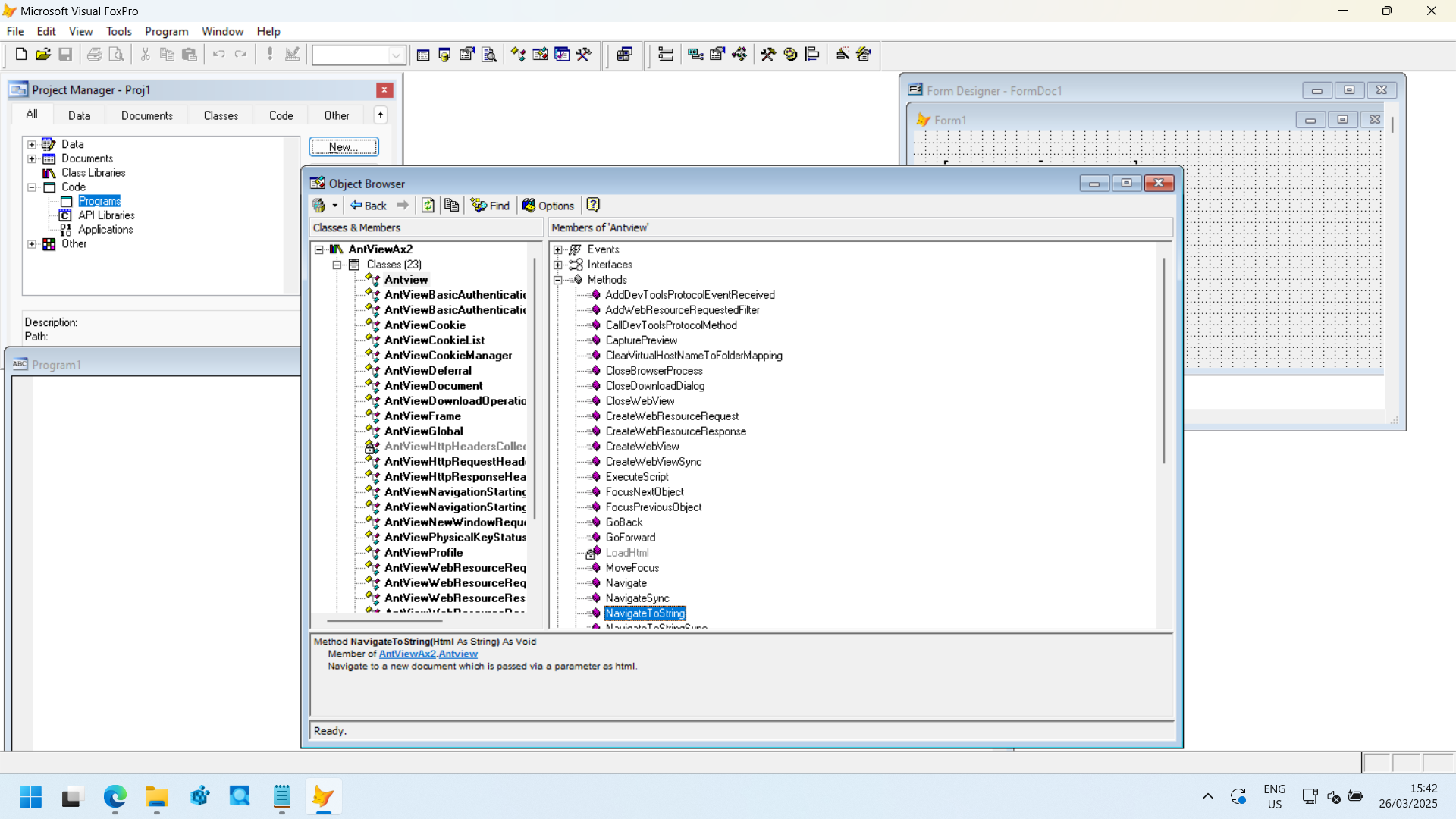
AntView is built as an ActiveX wrapper for Microsoft Edge WebView2, which allows legacy applications to access modern web technologies inside their existing framework without requiring a complete rewrite.

Seamless ActiveX Compatibility

AntView is designed as a  replacement for the traditional ActiveX WebBrowser control, allowing legacy applications to upgrade from Internet Explorer to Microsoft Edge WebView2.

Easy Integration

 AntView makes integration simple, fast, and low-risk, ensuring a smooth transition from outdated ActiveX controls to modern, secure WebView2 technology without major disruptions.

AntView is an ActiveX wrapper for the WebView2 control that is easy to use from any programming language intitle ip camera viewer intext setting client setting install fixed

PLANS AND PRICING

Per Developer Licensing

  • Single developer seat that is valid for AntView version 2.x
  • Now for only EUR 349,- (excluding VAT)
  • Renewal of the subscription is EUR 149,- The subscription must be renewed within 3 months after the subscription expires. You cannot apply an expired license to a version of AntView that was released after your subscription expired.

The prices above are without VAT or sales tax.
If you have multiple developers working on a product that uses our control, then you need a developer license for each developer working on that product.
You do not need a license for your test server, or for your QA personnel that does no development.


Support is provided to the licensed developer(s), not end users.
 The subscription covers a license for any new version of AntView which is released during the subscription period.

Site License

A site license comes at EUR 9900,- (excluding VAT) and can be used at a single named location. The site license covers an unlimited number of developers at this location.

For companies with many developers working on a product that utilizes the AntView control, a Site License can be acquired.


Enterprise License

For companies that need enterprise support, such as onboarding or specific contracts that need to be filled out, an enterprise license is available.


An enterprise license costs EUR 39500,- (excluding VAT) and covers all developers of a single organization worldwide.

Embedded License

Hardware devices where AntView is embedded in the hardware product, such as HMI/SCADA and IoT devices need a license for each host.

An embedded license is currently available at a 33% discount for EUR 199,- (excluding VAT) per host.

*All licenses come with a one year update subscription.

The control will continue to work even once the subscription has expired, but you won’t be able to get support for it, run an updated version of the control released after your license expired, or be able to renew for the discount price.

Future-Proof Your Applications – Keep Legacy Software Running with Modern Web Tech intitle ip camera viewer intext setting client setting install fixed

The search parameters "intitle:ip camera viewer" and "intext:setting client setting install fixed" typically relate to finding configuration pages for network-attached cameras, often associated with legacy or common security software Exploit DB Setting and Client Configuration Accessing Settings

: Most cameras allow access through a web browser by entering the camera's local IP address into the URL bar. Navigate to Setting > Basic > Network to find specific configuration options. Client Software Installation

: Dedicated viewer applications often require installing specific "Client" or "Config" utilities from the manufacturer (e.g., Honeywell ConfigTool or IPCManager). Fixed (Static) IP Setup

: To ensure the camera remains at a consistent address, you must "fix" the IP by switching the network settings from DHCP to Static

. Enter a manual IP address within your router's subnet range (e.g., 192.168.1.110 Typical Default Credentials

Many older IP camera systems (like TP-LINK, Zavio, or Intellinet) often found with these specific search strings use the following default logins: Exploit DB Zavio / TP-LINK : admin / admin Intellinet : admin / 1234 Hikvision (older) Adding a Camera to a Viewer App How to change the IP address of an IP security camera

Unlocking the World of Open IP Cameras: A Deep Dive into Advanced Viewing Techniques

The search string "intitle ip camera viewer intext setting client setting install fixed" is a powerful dork used by security researchers and enthusiasts to locate specific web-based interfaces for IP surveillance systems. These parameters target internal configuration pages that often bypass standard login screens, revealing the inner workings of remote monitoring setups.

Whether you are a professional securing your own network or a hobbyist learning about IoT vulnerabilities, understanding how these systems are structured—from the client settings to the fixed installation protocols—is essential. Understanding the Dork Components

To understand why this specific search is so effective, we have to break down the technical triggers:

intitle:"ip camera viewer": This filters results to pages that explicitly identify as a viewing console.

intext:"setting" & "client setting": These keywords target the administrative backend. Most consumer-grade cameras use "Client Settings" to define how the browser interacts with the hardware (stream quality, bitrate, and frame rate).

intext:"install fixed": This typically refers to the installation of ActiveX controls or Java applets required to render the video feed in a browser. "Fixed" often relates to a fixed IP address configuration or a permanent mount setting. The Architecture of a Web-Based IP Camera

When you land on a page matching these criteria, you are seeing the bridge between hardware and software. Here are the core components usually visible: 1. The Client-Side Environment

Most older or industrial IP cameras require a specific environment to run. This is where the "install" prompt comes in. The camera serves a small executable or plugin to the user's browser to decode the H.264 or MJPEG stream. In modern setups, this has been replaced by HTML5, but thousands of "fixed" legacy systems still rely on these manual installations. 2. Network Configuration (Fixed IPs)

A "fixed" installation is standard in professional security. Unlike your home Wi-Fi devices that might change IP addresses via DHCP, a professional IP camera viewer is usually mapped to a static (fixed) IP. This ensures that the client setting on the NVR (Network Video Recorder) never loses the handshake with the camera. 3. Administrative Client Settings Inside the "Client Setting" menu, users typically find:

Media Port / HTTP Port: The gateways through which data travels.

Buffering Options: Adjusted based on the "fixed" bandwidth available at the installation site.

Overlay Settings: Adding timestamps or "fixed" labels (e.g., "Front Gate") to the video feed. Security Implications: Why This Matters

The reason this specific keyword string is popular in the cybersecurity community is that it often reveals unprotected devices.

Many installers set up a camera, configure the "fixed" IP, and forget to change the default administrative credentials. By searching for these specific strings, one can find cameras where the "Setting" page is globally indexed by search engines. This exposes everything from private warehouses to baby monitors to the public web. Best Practices for Your Own "Fixed" Installation

If you are installing an IP camera viewer system, follow these steps to ensure you aren't the subject of a search query:

Change Default Ports: Don’t use 80 or 8080. Move your web interface to a non-standard port.

Disable Universal Plug and Play (UPnP): This prevents the camera from "talking" to your router and automatically opening holes in your firewall.

Use a VPN: Instead of making your "IP Camera Viewer" page public, access it through a secure VPN tunnel.

Update Firmware: Manufacturers frequently release patches to hide "setting" pages from being indexed by search engine bots. Conclusion

The world of IP surveillance is a balance between accessibility and security. While the string "intitle ip camera viewer intext setting client setting install fixed" serves as a fascinating window into how these devices are managed, it also serves as a stark reminder of the importance of robust configuration.

Always ensure your "fixed" installations are behind a firewall, and your "client settings" are locked behind more than just a default password.

The specific search query "intitle:ip camera viewer intext:setting client setting install fixed" is often used by security researchers and IT professionals to locate web-based interfaces for IP camera management software. Specifically, this string targets the configuration pages of networked video surveillance systems that may have been left exposed to the public internet.

If you are a system administrator or a home user looking to properly install, fix, and secure your IP camera client settings, this guide will walk you through the essential steps to ensure your feed is functional for you—and invisible to everyone else. Understanding the IP Camera Viewer Architecture

Most IP camera systems operate on a client-server model. The IP Camera Viewer is the client-side interface (often a web browser or dedicated software) that communicates with the camera hardware or a Network Video Recorder (NVR).

When you see terms like "Client Setting" and "Install Fixed," it typically refers to:

ActiveX or Web Components: Plugins required for browsers to render live video.

Static IP Assignment: Ensuring the camera stays at a "fixed" address so the viewer can always find it.

Port Forwarding: The configuration that allows you to view your camera from outside your local network. Step 1: Initial Install and "Fixed" IP Assignment

The most common point of failure in camera setups is the IP address changing. To ensure a "fixed" connection:

Access the Camera Interface: Log into your camera using its default local IP (e.g., 192.168.1.100). Network Settings: Locate the TCP/IP or Network menu.

Static IP: Change the setting from "DHCP" to "Static." Manually assign an IP address outside of your router's normal DHCP range to avoid conflicts.

Save and Reboot: This ensures your "IP Camera Viewer" always points to the same digital location. Step 2: Optimizing Client Settings for Stability

Once the hardware is fixed, you must configure the viewer client for the best performance:

Sub-Stream vs. Main-Stream: For remote viewing on mobile devices, set the client to use the Sub-Stream (lower resolution). Use the Main-Stream only for local recording to save bandwidth.

Buffer Settings: If your video is choppy, increase the "Play Buffer" in the client settings. This adds a slight delay but results in much smoother playback.

Video Encoding: Most modern viewers support H.265. Ensure this is enabled in the settings to reduce data usage by up to 50% compared to the older H.264 standard. Step 3: Fixing Common Connection Issues

If your viewer displays a "Connection Failed" or "Plugin Not Installed" error:

Browser Compatibility: Many older IP camera web interfaces require Internet Explorer mode or specific ActiveX controls. If using Chrome or Edge, install an "IE Tab" extension or use the manufacturer’s standalone desktop client.

Port Mapping: Ensure the HTTP Port (usually 80 or 8080) and the RTSP Port (usually 554) are properly configured in both the camera settings and your router.

Firmware Updates: An outdated camera OS can cause the client software to crash. Always check the "System" or "Maintenance" tab for available updates. ⚠️ Crucial Security Warning: "The Google Dork"

The keyword string you provided is known as a "Google Dork." If your camera’s "Setting" page is indexed by search engines, it means anyone can find and potentially control your camera. How to secure your install:

Change Default Credentials: Never leave the username as "admin" or the password as "12345" or "password."

Disable UPnP: Do not let the camera "fix" its own ports. Manually configure them or, better yet, use a VPN to access your home network.

Check Privacy Settings: Ensure "Anonymous Viewing" is toggled OFF in the client settings.

Setting up an IP camera viewer requires a balance between accessibility and security. By assigning a fixed IP, optimizing your client streams, and closing the loopholes that make "Google Dorking" possible, you can create a professional-grade surveillance setup that remains private.

intitle:"ip camera viewer" intext:"setting" "client setting" "install" "fixed"

is a reconnaissance technique used to locate internet-connected cameras that have publicly accessible management pages. These devices are often vulnerable due to default credentials or unpatched firmware. ⚠️ Security Risks Privacy Breach:

Unauthorized individuals can view live feeds of private residences or businesses. Credential Harvesting:

Attackers may attempt to "brute force" the login page to gain administrative control. Botnet Recruitment:

Compromised cameras are frequently drafted into botnets (like Mirai) to launch DDoS attacks. Network Pivoting:

Once a camera is compromised, it can serve as an entry point to the rest of a local network. 🛠️ Remediation & Prevention

If you are an administrator or owner of an IP camera system, follow these steps to ensure your hardware is not discoverable via search engines: 1. Disable Port Forwarding

Avoid using Universal Plug and Play (UPnP) or manual port forwarding to expose the camera directly to the internet. Instead, use a

(Virtual Private Network) to access your local network securely. 2. Update Default Credentials

use the manufacturer's default username and password (e.g., admin/admin or admin/12345).

Implement complex passwords or passphrases with a mix of characters. 3. Firmware Management

Check the manufacturer's website regularly for security patches.

Enable automatic updates if the device supports them to protect against known exploits. 4. Network Isolation Place IP cameras on a

(Virtual Local Area Network) separate from sensitive data and primary computers.

Restrict the camera's ability to communicate with anything outside of the designated recording server. 🔒 Ethical Note

Accessing or attempting to access private camera feeds without explicit authorization is illegal under various computer fraud and abuse laws. This information is provided for educational and defensive purposes to help administrators secure their infrastructure.

I can write a long blog post on installing and configuring IP camera viewer clients with fixed settings. I'll assume you want a comprehensive how-to covering popular viewer software, step-by-step installation, network configuration (static IPs/port forwarding), security best practices, troubleshooting, and sample configurations.

Do you want me to:

  1. Target specific viewer software (e.g., ONVIF Device Manager, iSpy, VLC, Blue Iris, TinyCam) — or
  2. Keep it generic and cover multiple popular options?

Pick 1 or 2. If you choose 1, list which software to include; if you choose 2, I’ll proceed covering several common viewers.

Here’s a clean and usable text string for searching:

intitle:"ip camera viewer" intext:"setting" intext:"client" intext:"install" intext:"fixed"

You can also try this slightly broader version:

intitle:"ip camera viewer" intext:"setting" "client" "install" "fixed"

Purpose of this search:
It looks for web pages whose title contains "IP Camera Viewer" and whose body includes words like setting, client, install, fixed — often revealing setup pages, configuration panels, or installation guides for IP camera software (potentially with default credentials or exposed settings).

The phrase you provided is a Google Dork, a specific type of advanced search query used to find potentially vulnerable or exposed internet-connected devices. What This Specific Dork Does

When entered into a search engine, this query targets web-accessible IP camera interfaces that have been indexed by Google.

intitle:"ip camera viewer": Instructs the search engine to look for webpages where the browser tab or title specifically includes "ip camera viewer".

intext:"setting client setting install fixed": Filters the results for pages containing these specific technical terms in their visible text, which are often found on the configuration or setup pages of certain IP camera brands. Why It's "Interesting" (and Risky)

These queries are frequently used in "Google Hacking" to identify devices that have been left online with default settings or no password protection.

Exposure: If a camera is indexed this way, it means someone can likely view the live feed or change its settings without being physically present.

Security Risk: Finding such a page often reveals sensitive information like a camera's location, device type, or network configuration.

Ethical/Legal Warning: Accessing or testing a device you do not own is illegal and unethical. How to Protect Your Own Camera

If you use IP cameras, ensure they aren't findable via such dorks by following these steps: How Do IP Cameras Work? An In-Depth Explanation - eufy US

The search query you provided is a Google Dork, a specific advanced search string used to locate sensitive information or exposed devices—in this case, unsecured IP camera web interfaces. Analysis of the Dork

intitle:"IP CAMERA Viewer": This instructs Google to find pages where the browser tab title contains this exact phrase, a common default for many IP camera management pages.

intext:"setting client setting install fixed": This targets specific text found on the login or configuration page of cameras from brands like TP-LINK, Zavio, and Intellinet.

Intent: These dorks are primarily used for reconnaissance by security researchers to identify vulnerabilities or by malicious actors to access private video feeds. Review of Security Risks

Using this search query often reveals cameras still set to default credentials (e.g., admin:admin or admin:123456), which presents severe privacy risks.

Privacy Exposure: Unauthorized users can view live footage of homes, offices, or sensitive facilities.

Device Hijacking: Attackers can sometimes modify settings, disable recording, or use the camera as a "bot" in a DDoS attack, similar to the Mirai botnet.

Network Entry Point: A compromised camera can serve as a gateway to the rest of your local network, allowing hackers to target other connected devices. How to Secure Your Camera

If you own an IP camera and want to ensure it doesn't appear in such search results:

intitle:"IP CAMERA Viewer" intext:"setting | Client setting"

The phrase you provided is a Google Dork, a specialized search query used to find specific pages or devices indexed by Google. This particular query is designed to locate web-accessible IP camera management portals for brands like TP-LINK, Zavio, and Intellinet. Understanding the Query

intitle:"IP CAMERA Viewer": Tells Google to find pages where the browser tab or title bar exactly matches this text.

intext:"setting | Client setting": Searches for specific technical labels within the body of the webpage that typically appear in a camera's configuration interface.

install fixed: Refers to specific installation or fixed-view settings often found in the source code or UI of these devices. Common Findings & Default Credentials

Security researchers use this dork to identify cameras that have been left publicly accessible, often with their factory default login credentials still active:

TP-LINK & Zavio: Often use admin for both the username and password.

Intellinet: Frequently uses admin as the username and 1234 as the password.

D-Link & Others: Common default IPs include 192.168.1.10 or 192.168.0.120. Security Risks and Legal Warning

While dorking is a legal technique used by cybersecurity professionals for vulnerability assessments, using these queries to access private cameras without permission is prohibited and potentially illegal.

If you are securing your own camera, follow these steps to prevent being found by dorks:

Change Default Passwords: Immediately replace factory settings with a strong, unique password.

Disable UPnP: Turn off Universal Plug and Play on your router to stop the camera from automatically opening ports to the public internet.

Update Firmware: Regularly install manufacturer updates to patch known security flaws.

Use a VPN: Instead of exposing the camera directly to the web, access it through a secure VPN connection.

Are you looking to secure your own home network against these types of searches, or are you trying to configure a specific camera model? Quick Instruction Guide for IP camera - D-Link


Step 4: Navigate to Client Settings

Login as admin → Look for "Settings" → "Network" → "Client Settings".

Example settings to fix:

| Parameter | Recommended Value | |-----------|-------------------| | RTSP Authentication | digest (not basic) | | Max Viewers | 5 | | WebSocket | Enable (for HTML5 viewing) | | ONVIF Port | 80 | | Plugin Mode | Disable if using VLC |

8.3 Failover Client Settings

Some viewers (Blue Iris, Agent DVR) allow secondary IP/URL. If the fixed IP becomes unreachable, the client will try an alternate. Useful if you have dual NIC cameras.


In TinyCam:

  • Long-press camera → Edit → Modify IP/host field.

Issue 7: IP Camera Viewer for Mac – No Browser Plugin

Symptom: Safari/Chrome on Mac shows "Plugin not supported".

Fix:

  • Use VLC Media Player (Open Network Stream → rtsp://cameraip:554/stream1).
  • Install IP Camera Viewer Lite (App Store) – works without plugins.
  • Fixed by firmware: Update camera firmware to the latest version that supports HTML5/WebRTC.

8.1 Substreams

Most IP cameras offer a low-res substream (e.g., 640×360). Configure the viewer client to show substreams in the grid view and switch to mainstream only on full-screen or recording. Saves CPU.
intitle ip camera viewer intext setting client setting install fixed
AntView in the Visual Fox Pro Environment

Why AntView intitle ip camera viewer intext setting client setting install fixed

  • Full HTML5, CSS and JavaScript Support
  • AntView uses Edge WebView2, meaning it can render web pages using the same Chromium engine as Microsoft Edge.
  • Automatic updates – Since it uses Microsoft Edge’s WebView2 runtime, AntView benefits from Chromium’s frequent security and performance updates.

Upgrade Your ActiveX Applications With The Latest MS Edge WebView2 intitle ip camera viewer intext setting client setting install fixed

Highlights in AntView 2.0

  • Built against the MS WebView2 API from April 2025
  • Adds support for Basic Authentication and Profile management.
  • Adds support to change HTML on the fly using the document interface via OuterHtml.
  • Built-in AntView About page for troubleshooting purposes without having to enable logging.
  • Embedded licensing is now available via a single license file.
  • Improved and extended examples

AntView gives you an ActiveX interface for the Microsoft WebView2 control intitle ip camera viewer intext setting client setting install fixed

  • AntView 2.0.567 release

    AntView 2.0.567 release

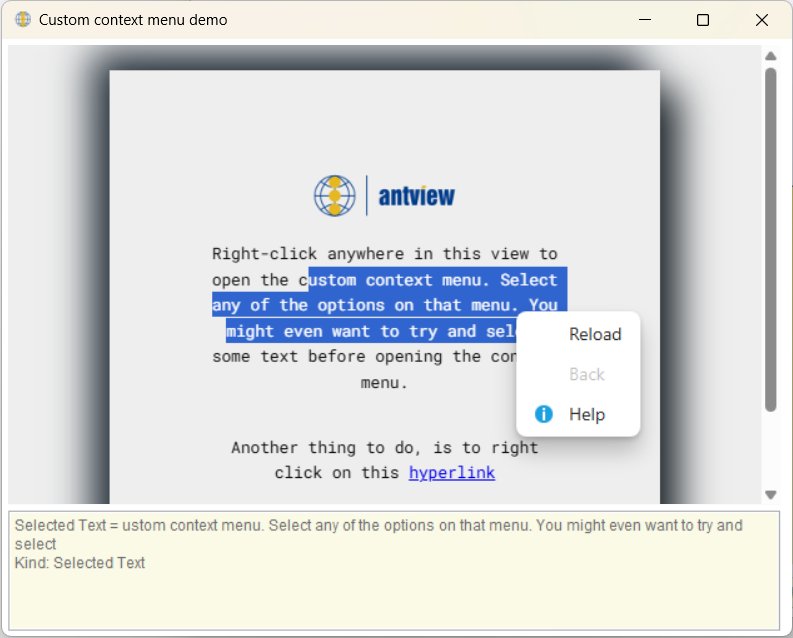
    Highlights of AntView 2.0.567 are custom context menu functionality and a synchronous cookie interface. There’s examples and help explaining these new features. New functionality has been added to the main AntView interface. The examples and help for PowerBuilder have been improved. Fixed an issue with being able to run the VB6 examples.

    Read more…

  • AntView 2.0 release

    AntView 2.0 release

    April 16, 2025 Release of AntView version 2.0.514 Uses latest API 1.0.3179.45 of WebView2 from April 2025. The RegisterAssistant application now also has command line options, so that you can use it for deployment scripts. New functionality: AntView interface:Properties: AntViewDocument interface:Methods: Events: Introduction of the AntView About Page where you can view details about the

    Read more…