Помните о Боге!
Acer Tablet: Flash Tool
The Ultimate Guide to Acer Tablet Flash Tools: Recovery and Firmware Installation
Flashing an Acer tablet—whether to unbrick it, upgrade its software, or return it to stock settings—requires specific tools tailored to the device's hardware. Because Acer tablets use different chipsets (like MediaTek or Qualcomm), there is no single "Acer Tablet Flash Tool." Instead, you must identify your device's processor to choose the correct software. Essential Tools for Flashing Acer Tablets
The "best" tool depends entirely on your tablet's internal hardware and whether you have access to a PC.
Smartphone Flash Tool (SP Flash Tool): This is the primary tool for Acer tablets with MediaTek (MTK) chipsets, such as the Iconia One 10 B3-A40 or Iconia B1 series. It is a powerful PC-based utility used to flash stock ROMs, custom recoveries, and fix boot loops.
Acer Official Support Site: For many models, Acer provides official firmware images that can be installed directly from an SD Card without needing a third-party PC tool.
QFIL (Qualcomm Flash Image Loader): Used for Acer devices powered by Qualcomm processors, typically when the device is in Emergency Download Mode (EDL).
Fastboot & ADB: Standard Android development tools used for unlocking bootloaders and flashing specific partitions (like recovery.img) on older models like the Iconia Tab A510. How to Flash an Acer Tablet Using SP Flash Tool (MediaTek)
If your tablet has a MediaTek processor, follow these steps to restore or update your firmware.
Preparation: Download the Official Acer Stock ROM for your specific model. Extract the folder to find the scatter.txt file—this is the "blueprint" the tool needs to install files correctly.
Install Drivers: Download and install the MediaTek USB VCOM drivers on your PC to ensure the computer can talk to the tablet while it is powered off.
Load the Tool: Open the SP Flash Tool executable as an administrator.
Select Scatter File: In the "Download" tab, click the Scatter-loading button and navigate to the scatter.txt file in your ROM folder. Initiate Flash: Click the Download button in the tool.
Connect Device: Power off your tablet completely. While holding the Volume Up or Volume Down key, connect it to your PC via USB.
Finalize: Once the process starts, wait for a Green Ring to appear on the screen, which signals a successful flash. Flashing via SD Card (No PC Required)
Many Acer Iconia tablets support flashing directly from the Recovery Menu. This is the safest method if your tablet can still boot into its recovery environment.
Depending on the specific processor (chipset) inside your Acer tablet, you will need a different tool to "flash" it:
SP Flash Tool (Smart Phone Flash Tool): This is the industry standard for Acer tablets using MediaTek (MTK) chips, such as the Iconia One 7 or 8.
Intel Phone Flash Tool: Used for Acer tablets with Intel Atom processors (e.g., the Iconia Tab 8 A1-840).
Qualcomm Flash Image Loader (QFIL): Required for the rarer Acer models running on Snapdragon hardware.
Acer EUU (Experience Upgrade Utility): An official, user-friendly tool provided by Acer Support for certain legacy models to automate the update process. рџ“– Why Flashing is Considered "Interesting" acer tablet flash tool
In the context of technology research and the "right to repair," flashing tools are significant for several reasons:
Device Longevity: Flashing allows users to install "Clean" or "Debloated" firmware, which can speed up older tablets that Acer no longer supports.
Security Research: Security professionals use these tools to dump internal memory (eMMC) to look for vulnerabilities in the bootloader.
Recovery: These tools are often the only way to fix a "boot loop" (where the tablet gets stuck on the Acer logo) by rewriting the system partition from scratch. вљ пёЏ Essential Safety Steps
Flashing carries a high risk of permanently disabling your device if done incorrectly.
Identify Your Model: Check the back of the tablet or the settings for the exact model number (e.g., B1-730, A3-A20).
Match Firmware Exactly: Using firmware for the wrong region or model variant can "hard brick" the device.
Drivers are Key: Most flashing failures happen because the correct USB VCOM or ADB drivers aren't installed on the PC.
Community Resources: For specific guides, the XDA Developers Forum is the most reliable source for community-made flash packages and custom ROMs.
To help you find the specific "paper" or guide you are looking for, could you tell me: What is the model number of your Acer tablet?
Are you trying to fix a broken tablet or upgrade to a newer version of Android?
Did you see this term in a specific forum or technical document?
For most modern Acer tablets, the standard tool for flashing official firmware (Stock ROM) is the Smartphone Flash Tool (SP Flash Tool). This utility is specifically designed for devices using MediaTek (MTK) processors, which many Acer Iconia and One series tablets utilize. Flash Tool Prerequisites
Before attempting a flash, you must gather the following components:
MediaTek USB Drivers: Essential for your PC to recognize the tablet in "Preloader" mode.
Smartphone Flash Tool: Download and extract the latest version of the executable.
Official Acer Stock ROM: This must be the exact firmware for your model (e.g., Iconia One B3-A40). The firmware folder contains the critical Scatter file needed by the tool. Step-by-Step Flashing Procedure Preparation: Power off your tablet completely.
Load Scatter File: Open Flash_tool.exe as an administrator. In the Download tab, click the Scatter-loading button and select the scatter file found in your firmware folder.
Initiate Download: Click the Download button at the top of the tool. The Ultimate Guide to Acer Tablet Flash Tools:
Connect Tablet: Connect the powered-off tablet to your PC via USB.
Pro Tip: While connecting, press and hold the Volume Down or Volume Up key to help the computer detect the device.
Flashing Process: A progress bar will appear at the bottom. Wait for a green ring or "Download OK" message, which indicates success. Important Considerations
Official Support: Acer generally does not provide direct instructions for flashing due to the risk of bricking devices. They recommend using the Acer Drivers and Manuals page for official OS image updates or contacting Acer Tech Support. Device Specifics:
Nvidia-based Tablets: Older models like the Iconia Tab A500 may require the nvflash tool and a Secure Boot Key (SBK).
Spreadtrum-based Tablets: Devices with Spreadtrum chips require the SPD Flash Tool (ResearchDownload) and .pac firmware files.
For a visual walkthrough of the MediaTek flashing process, you can watch this demonstration:
The hum of the server room was a low, mechanical growl, the only sound in the dimly lit workshop where Elara sat hunched over a scarred wooden workbench. Before her lay a relic of a bygone era—an Acer Iconia Tab
, its screen a dark, unyielding void. For years, it had been a brick, a casualty of a failed update that had left its internal memory in a state of digital amnesia.
Elara’s fingers danced across her keyboard, her eyes reflecting the harsh blue light of her monitor. She wasn’t looking for a miracle; she was looking for the Acer Tablet Flash Tool "Come on, you old ghost," she whispered.
She had scavenged the deepest corners of the web, navigating through broken links and forum threads archived a decade ago. Finally, in a dusty corner of a forgotten FTP server, she found it: a ZIP file simply labeled Acer_AV0L0_Flash_Tool_v1.0.exe
She connected the tablet via a frayed USB cable. The computer chimed—a hesitant, high-pitched "ping" that suggested the hardware was still clinging to life. She launched the tool. The interface was utilitarian, a grey window with a single progress bar and a "Start" button that felt heavier than it looked.
She selected the firmware image, a digital blueprint of the tablet’s soul. With a sharp exhale, she clicked
The progress bar began its slow, agonizing crawl. 5%... 12%... 24%. Outside, the rain lashed against the workshop window, mimicking the static noise of the data transfer. On the screen, strings of code flickered by—
The Acer Download Tool and standard flashing software like the Smartphone (SP) Flash Tool provide several features designed to simplify firmware updates and system recovery for Acer tablets. Key Features of Acer Flash Tools
Automated File Management: The tools use "Scatter-loading" or .bin files to automatically map firmware components to their correct memory addresses, reducing the need for manual file handling.
Dual-Mode Operation: The Acer Download Tool supports two primary methods for updates:
OS Mode: The recommended way to update while the device is fully booted and connected via USB.
Boot-Recovery (BR) Mode: A fallback for unbricking tablets that fail to boot, typically triggered by a physical hardware key combination (like the Reset pinhole and Power key). flash_tool/flasher
USB Debugging Integration: In OS mode, the tool communicates directly with the device through USB debugging, allowing for streamlined "one-click" style updates from a PC.
Firmware Verification: The tools often include status indicators, such as a "green ring" or completion bar, to confirm the firmware has been successfully and completely flashed before the user disconnects.
Compatibility with Third-Party Tools: For Acer tablets with specific chipsets (like MediaTek or Spreadtrum), specialized tools like the SP Flash Tool or SPD Flash Tool provide advanced features for deep system repairs and "unbricking". Specialized Utility Tools
Acer A200 Simple Tool: A community-developed utility specifically for the Iconia Tab A200 that simplifies rooting, removing bloatware, and installing custom recoveries in a single package.
Acer Care Center: While not a direct "flasher," this official software allows users to create a Recovery USB flash drive to reset or reinstall the operating system if the device becomes unstable. Acer Recovery Media
For most Acer Android tablets, the standard tool for flashing firmware is the Smart Phone (SP) Flash Tool
, which is designed for devices running on MediaTek processors Acer Community Key Flashing Tools for Acer Tablets Smart Phone (SP) Flash Tool
: The go-to utility for MediaTek-based Acer Iconia tablets (like the B3-A20 or B3-A40) Acer Community . It requires a Scatter file
found within the stock ROM folder to map the device partitions Acer Community SPD Flash Tool (ResearchDownload/UpgradeDownload) : Used specifically for Acer tablets with Spreadtrum (Unisoc) chips, such as the Sospiro AS20WF Acer Community Intel Phone Flash Tool
: A modified version may be required for specific Intel-based models like the Iconia Tab 8 A1-860, often requiring the device to be in General Flashing Process Preparation : Download and install the correct USB VCOM or MediaTek drivers on your PC to ensure the tablet is recognized Firmware Selection : Obtain the exact
for your specific model. Using the wrong firmware can result in a soft-bricked device or hardware issues like a non-responsive touchscreen Acer Community Loading the Tool : Open the flash tool and load the firmware map (the scatter file for SP Flash Tool or the file for SPD tools) Acer Community Connecting the Device : Click "Download" or "Start," then connect your powered-off tablet to the PC via USB. You may need to hold the Volume Down button while connecting to trigger detection Acer Community Completion
: A green ring or "Passed" message indicates the flashing is successful. Disconnect and reboot your device Acer Community Important Troubleshooting B3-A20 scatter file - Acer Community
flash_tool/flasher.py
import subprocess import hashlibclass AcerFlasher: def init(self, mode, model): self.mode = mode self.model = model
def flash_fastboot(self, partition, img_file): print(f"Flashing partition via fastboot...") cmd = ["fastboot", "flash", partition, img_file] return subprocess.run(cmd).returncode == 0 def flash_mtk_preloader(self, scatter_file, images_dir): # Use SP Flash Tool's 'flash_tool.py' or mediatek flasher # This is a placeholder – would need MTK protocol library print(f"Using MTK preloader mode with scatter: scatter_file") # Example: call mtkclient or custom protocol return True def flash_edl(self, programmer_path, rawprogram): # Qualcomm Firehose protocol via edl tool cmd = ["edl", "w", programmer_path, rawprogram] return subprocess.run(cmd).returncode == 0 def verify_flash(self, partition, expected_hash, local_img): with open(local_img, "rb") as f: hash_val = hashlib.sha256(f.read()).hexdigest() return hash_val == expected_hash
What is the Acer Tablet Flash Tool?
The Acer Tablet Flash Tool (often referred to as the Acer Download Tool or Acer Software Upgrade Tool) is a proprietary utility designed by Acer to write firmware directly onto the internal memory (eMMC or NAND) of your tablet.
Unlike an Over-The-Air (OTA) update that simply patches existing software, a "flash" completely rewrites the system partition. This process is essential for:
- Unbricking: Reviving a tablet that won’t boot past the logo.
- Stock Recovery: Returning to the original Acer operating system after a failed root or custom ROM attempt.
- Corruption Fixes: Repairing damaged system files caused by malware or sudden power loss.
- Manual Upgrades/Downgrades: Installing a specific firmware version that is no longer pushed via automatic updates.
Important Distinction: Do not confuse this with a "ROM Flashing Tool" for generic MediaTek or Qualcomm chips. The official Acer tool is tailored to Acer’s specific partition tables and bootloaders.
Error 3: BROM ERROR: S_BROM_DOWNLOAD_DA_FAIL (0x7D4)
- Cause: The tablet is not fully powered off.
- Fix: Disconnect battery internally (if possible) or hold Power + Vol Down for 60 seconds to drain residual charge. Then retry.

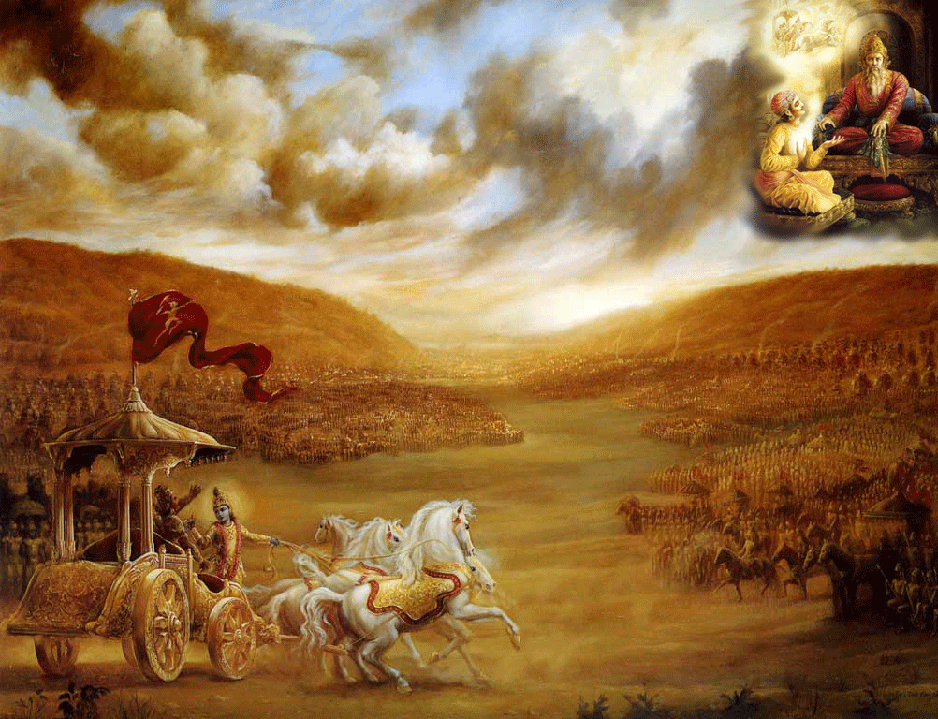
"На поле битвы Курукшетра"
В то время как армии противников строились в боевые порядки, Арджуна, могучий воин, смотрел на своих близких родственников, учителей и друзей, стоящих по разные стороны поля, готовых сражаться и пожертвовать своими жизнями. Переполненному печалью и сожалением Арджуне отказывают силы, ум его смущен и решимость сражаться покидает его.
Итак, мы приступаем к изучение одного из самых популярных произведений восточной философии.
Бхагавад-гита не только одно из самых популярных, но и одно из самых загадочных произведений этого мира.
А это значит, что её надо не просто читать, её надо изучать по определённым правилам, действующим уже несколько тысяч лет.
В чём же необычность этой книги? Многие учёные и специалисты пытались понять этот трактат, потратив на его изучение десятки лет, но так и не приблизились к истине ни на один шаг.
А всё дело в том, что это произведение носит личностный характер, т.е. вступает в контакт с читателем, реагирует на уровень его сознания, на его мысли, желания и цели.
Бхагавад-гита - это не мёртвые буквы, состоящие из типографской краски, нанесенные на обыкновенную бумагу. Это та самая живая книга, о которой ходят легенды. Бхагавад-гита - это Абсолютная Истина, принявшая форму книги, и несущая в себе все качества Абсолютной Истины.
И самое главное её качество - личностность. Она смотрит на нас, читателей, и делает свои выводы, решая открываться ли нам, а если открываться, то насколько. Поэтому и изучение подобных трактатов больше похоже на преданность, дружбу или любовь.
ТЕКСТ 1
дхртараштра увача
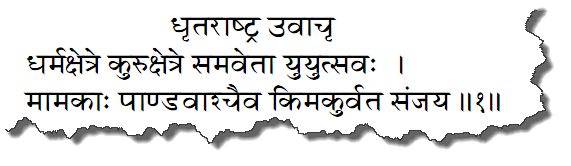
дхарма-кшетре куру-кшетре самавета йуйутсавах
мамаках пандаваш чаива ким акурвата санджайа
дхртараштрах увача — царь Дхритараштра сказал; дхарма-кшетре — в месте паломничества; куру-кшетре — в месте под названием Курукшетра; самаветах — собравшиеся; йуйутсавах — желающие вступить в бой; мамаках — те, кто на моей стороне (мои сыновья); пандавах — сыновья Панду; ча — и; эва — безусловно; ким — что; акурвата — сделали; санджайа — о Санджая.
Дхритараштра спросил: О Санджая, что стали делать мои сыновья и сыновья Панду, когда, горя желанием вступить в бой, собрались в месте паломничества, на поле Курукшетра?

ТЕКСТ 2
санджайа увача
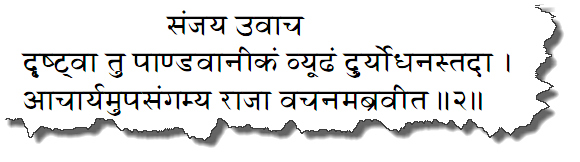
дрштва ту пандаваникам вйудхам дурйодханас тада
ачарйам упасангамйа раджа вачанам абравит
санджайах увача — Санджая сказал; дрштва — осмотрев; ту — но; пандава-аникам — армию Пандавов; вйудхам — выстроенную в боевые порядки; дурйодханах — царь Дурьйодхана; тада — тогда; ачарйам — к учителю; упасангамйа — подойдя; раджа — царь; вачанам — речь; абравит — произнес.
Санджая сказал: Оглядев боевые порядки армии сыновей Панду, царь Дурьйодхана подошел к своему учителю и произнес такие слова.
ТЕКСТ 3
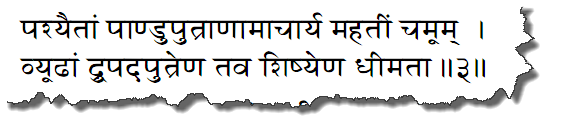
пашйаитам панду-путранам ачарйа махатим чамум
вйудхам друпада-путрена тава шишйена дхимата
пашйа — взгляни; этам — на эту; панду-путранам — сыновей Панду; ачарйа — о учитель; махатим — огромную; чамум — армию; вйудхам — построенную; друпада-путрена — сыном Друпады; тава — твоим; шишйена — учеником; дхи-мата — мудрым.
Взгляни, о учитель, на огромную армию сыновей Панду, которую так искусно выстроил твой одаренный ученик, сын Друпады.
ТЕКСТ 4
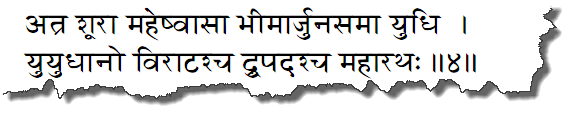
атра шура махешв-аса бхимарджуна-сама йудхи
йуйудхано вираташ ча друпадаш ча маха-ратхах
атра — здесь; шурах — герои; маха-ишу-асах — меткие лучники; бхима-арджуна — Бхиме и Арджуне; самах — равные; йудхи — в бою; йуйудханах — Ююдхана; виратах — Вирата; ча — также; друпадах — Друпада; ча — также; маха-ратхах — великий воин.
В этой армии много отважных лучников, которые не уступают в бою Бхиме и Арджуне. Среди них такие великие воины, как Ююдхана, Вирата и Друпада.
ТЕКСТ 5
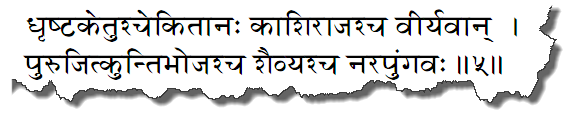
дхрштакетуш чекитанах кашираджаш ча вирйаван
пуруджит кунтибходжаш ча шаибйаш ча нара-пунгавах
дхрштакетух — Дхриштакету; чекитанах — Чекитана; кашираджах — Кашираджа; ча — и; вирйа-ван — могучий; пуруджит — Пуруджит; кунтибходжах — Кунтибходжа; ча — и; шаибйах — Шайбья; ча — и; нара-пунгавах — герой среди людей.
На их стороне великие, храбрые и могучие воины Дхриштакету, Чекитана, Кашираджа, Пуруджит, Кунтибходжа и Шайбья.
ТЕКСТ 6
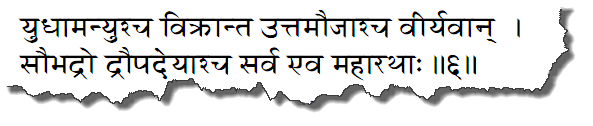
йудхаманйуш ча викранта уттамауджаш ча вирйаван
саубхадро драупадейаш ча сарва эва маха-ратхах
йудхаманйух — Юдхаманью; ча — и; викрантах — могучий; уттамауджах — Уттамауджа; ча — и; вирйа-ван — обладающий необыкновенной силой; саубхадрах — сын Субхадры; драупадейах — сыновья Драупади; ча — и; сарве — все; эва — безусловно; маха-ратхах — великие воины, сражающиеся на колесницах.
С ними могучий Юдхаманью, грозный
Уттамауджа, а также сын Субхадры и сыновья Драупади. Все они великие
воины, владеющие искусством боя на колесницах.
ТЕКСТ 7
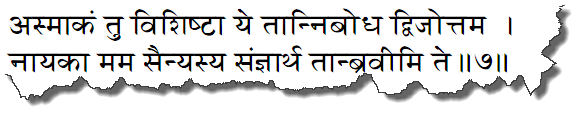
асмакам ту вишишта йе тан нибодха двиджоттама
найака мама саинйасйа самджнартхам тан бравими те
асмакам — наши; ту — но; вишиштах — необыкновенно могущественные; йе — которые; тан — их; нибодха — узнай же; двиджа-уттама — о лучший из брахманов; найаках — военачальники; мама — мои; саинйасйа — войска; самджна-артхам — к сведению; тан — их; бравими — называю; те — тебе.
А теперь, о лучший из брахманов, узнай от
меня о выдающихся военачальниках, которые поведут в бой мою армию.
ТЕКСТ 8
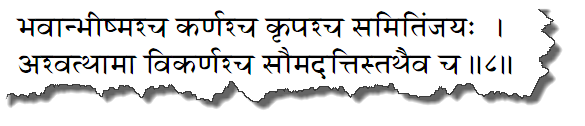
бхаван бхишмаш ча карнаш ча крпаш ча
самитим-джайах
ашваттхама викарнаш ча саумадаттис татхаива ча
бхаван — ты (досточтимый); бхишмах — Бхишма; ча — и; карнах — Карна; ча — и; крпах — Крипа; ча — и; самитим-джайах — побеждающий; ашваттхама — Ашваттхама; викарнах — Викарна; ча — а также; саумадаттих — сын Сомадатты; татха — также; эва — конечно; ча — и.
Среди них такие непобедимые воины, как ты сам, Бхишма, Карна, Крипа, Ашваттхама, Викарна и сын Сомадатты по имени Бхуришрава.
ТЕКСТ 9
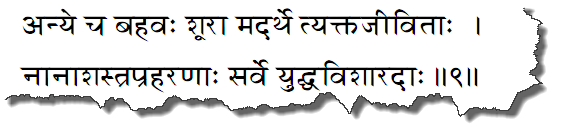
анйе ча бахавах шура мад-артхе тйакта-дживитах
нана-шастра-прахаранах сарве йуддха-вишарадах
анйе — другие; ча — также; бахавах — многие; шурах — герои; мат-артхе — за меня; тйакта-дживитах — готовые отдать жизнь; нана — многими; шастра — видами оружия; прахаранах — вооруженные; сарве — все; йуддха-вишарадах — опытные в военном деле.
В наших рядах много других героев, готовых отдать за меня свою жизнь. Все они владеют разнообразными видами оружия и опытны в ведении боя.
ТЕКСТ 10
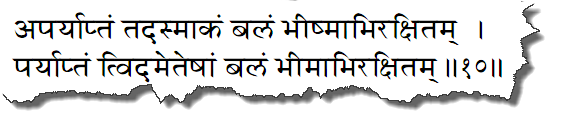
апарйаптам тад асмакам балам бхишмабхиракшитам
парйаптам тв идам этешам балам бхимабхиракшитам
апарйаптам — неизмерима; тат — та; асмакам — наша; балам — сила; бхишма — Бхишмой; абхиракшитам — надежно защищенная; парйаптам — ограничена; ту — но; идам — эта; этешам — (этих) Пандавов; балам — сила; бхима — Бхимой; абхиракшитам — хорошо защищенная.
Наши силы неизмеримы, а наша армия надежно защищена дедом Бхишмой, тогда как силы Пандавов, которые тщательно обороняет Бхима, ограниченны.
ТЕКСТ 11
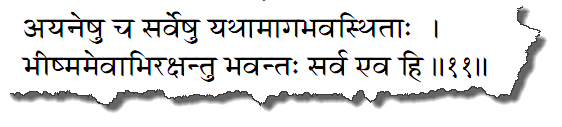
айанешу ча сарвешу йатха-бхагам авастхитах
бхишмам эвабхиракшанту бхавантах сарва эва хи
айанешу — на стратегических позициях; ча — также; сарвешу — на всех; йатха-бхагам — раздельно; авастхитах — находящиеся; бхишмам — Бхишме; эва — безусловно; абхиракшанту — пусть оказывают поддержку; бхавантах — вы (досточтимые); сарве — все; эва хи — обязательно.
Каждый из вас, защищая свои позиции в боевых порядках, должен оказывать всемерную поддержку Бхишме.
ТЕКСТ 12
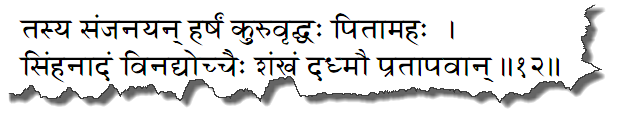
тасйа санджанайан харшам куру-врддхах питамахах
симха-надам винадйоччаих шанкхам дадхмау пратапаван
тасйа — его; санджанайан — усиливающий; харшам — радость; куру-врддхах — старейшина рода Куру (Бхишма); питамахах — дед; симха-надам — раскатистый звук, подобный рычанию льва; винадйа — издав; уччаих — очень громко; шанкхам — в раковину; дадхмау — протрубил; пратапа-ван — доблестный.
Тогда Бхишма, доблестный старейшина рода Куру, самый почтенный из собравшихся на Курукшетре воинов, громко затрубил в свою раковину, и ее звук, подобный львиному рыку, наполнил радостью сердце Дурьйодханы.
ТЕКСТ 13
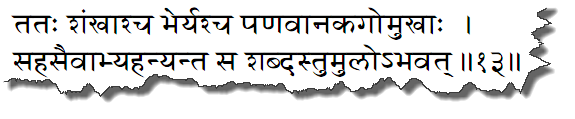
татах шанкхаш ча бхерйаш ча панаванака-гомукхах
сахасаивабхйаханйанта са шабдас тумуло 'бхават
татах — затем; шанкхах — раковины; ча — также; бхерйах — большие барабаны; ча — и; панава-анака — маленькие барабаны и литавры; го-мукхах — и рожки; сахаса — неожиданно; эва — безусловно; абхйаханйанта — одновременно зазвучали; сах — этот; шабдах — звук; тумулах — громоподобный; абхават — был.
Вторя ему, разом зазвучали раковины,
барабаны, трубы, горны и рожки, наполнив воздух громоподобным гулом.
ТЕКСТ 14
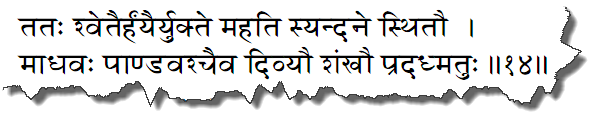
татах шветаир хайаир йукте махати сйандане
стхитау
мадхавах пандаваш чаива дивйау шанкхау прададхматух
татах — затем; шветаих — белыми; хайаих — лошадьми; йукте — на запряженной; махати — на великолепной; сйандане — на колеснице; стхитау — находившиеся; мадхавах — Кришна (супруг богини удачи); пандавах — сын Панду (Арджуна); ча — также; эва — безусловно; дивйау — в божественные; шанкхау — раковины; прададхматух — подули.
Тогда на другой стороне Господь Кришна и Арджуна, стоявшие на великолепной колеснице, запряженной белыми лошадьми, затрубили в свои божественные раковины.
ТЕКСТ 15
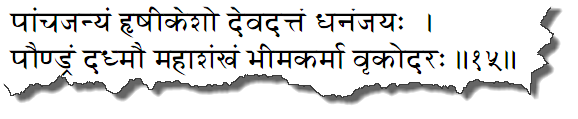
панчаджанйам хршикешо девадаттам дхананджайах
паундрам дадхмау маха-шанкхам бхима-карма вркодарах
панчаджанйам — в раковину, называемую Панчаджаньей; хршика-ишах — Хришикеша (Господь Кришна, повелевающий чувствами Своих преданных); девадаттам — в раковину, называемую Девадаттой; дханам-джайах — Дхананджая (Арджуна, завоеватель богатств); паундрам — в раковину, называемую Паундрой; дадхмау — подул; маха-шанкхам — в огромную раковину; бхима-карма — совершающий богатырские подвиги; врка-ударах — ненасытный едок (Бхима).
Господь Кришна затрубил в Свою раковину Панчаджанью, а Арджуна — в свою, Девадатту; ненасытный Бхима, славный своими богатырскими подвигами, затрубил в свою огромную раковину Паундру.
ТЕКСТЫ 16–18
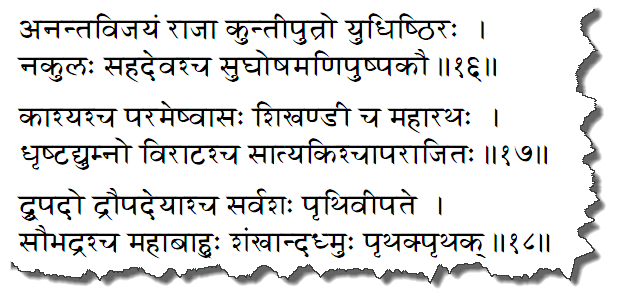
анантавиджайам раджа кунти-путро йудхиштхирах
накулах сахадеваш ча сугхоша-манипушпакау
кашйаш ча парамешв-асах шикханди ча маха-ратхах
дхрштадйумно вираташ ча сатйакиш чапараджитах
друпадо драупадейаш ча сарвашах пртхиви-пате
саубхадраш ча маха-бахух шанкхан дадхмух пртхак пртхак
ананта-виджайам — в раковину Анантавиджаю; раджа — царь; кунти-путрах — сын Кунти; йудхиштхирах — Юдхиштхира; накулах — Накула; сахадевах — Сахадева; ча — и; сугхоша-манипушпакау — в раковины Сугхошу и Манипушпаку; кашйах — царь Каши (Варанаси); ча — и; парама-ишу-асах — великий лучник; шикханди — Шикханди; ча — также; маха-ратхах — тот, кто может в одиночку сражаться с тысячами воинов; дхрштадйумнах — Дхриштадьюмна (сын царя Друпады); виратах — Вирата (царь, давший приют Пандавам, когда они вынуждены были скрываться); ча — также; сатйаких — Сатьяки (другое имя Ююдханы, колесничего Господа Кришны); ча — и; апараджитах — непобедимый; друпадах — Друпада, царь Панчалы; драупадейах — сыновья Драупади; ча — также; сарвашах — всюду; пртхиви-пате — о царь; саубхдрах — Абхиманью, сын Субхадры; ча — также; маха-бахух — могучерукий; шанкхан — в раковины; дадхмух — затрубили; пртхак пртхак — каждый в отдельности.
Царь Юдхиштхира, сын Кунти, затрубил в свою раковину Анантавиджаю, а Накула и Сахадева — в раковины Сугхошу и Манипушпаку. Великий лучник царь Каши, великий воин Шикханди, Дхриштадьюмна, Вирата, непобедимый Сатьяки, Друпада, сыновья Драупади и другие воины, такие, как могучерукий сын Субхадры, о государь, тоже затрубили каждый в свою раковину.
ТЕКСТ 19
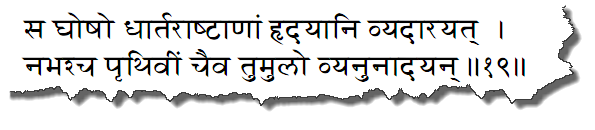
са гхошо дхартараштранам хрдайани вйадарайат
набхаш ча пртхивим чаива тумуло 'бхйанунадайан
сах — тот; гхошах — звук; дхартараштранам — сыновей Дхритараштры; хрдайани — сердца; вйадарайат — заставил содрогнуться; набхах — небо; ча — также; пртхивим — поверхность земли; ча — также; эва — безусловно; тумулах — громоподобный; абхйанунадайан — оглашающий.
Громовые звуки их раковин слились в непрерывный гул. Оглашая небо и землю, они заставили содрогнуться сердца сыновей Дхритараштры.
ТЕКСТ 20
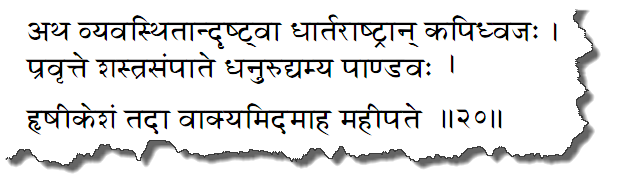
атха вйавастхитан дрштва дхартараштран
капи-дхваджах
правртте шастра-сампате дханур удйамйа пандавах
хршикешам тада вакйам идам аха махи-пате
атха — тогда; вйавастхитан — выстроенных; дрштва — оглядев; дхартараштран — сыновей Дхритараштры; капи-дхваджах — тот, чей флаг был украшен изображением Ханумана; правртте — когда был готов; шастра-сампате — пускать стрелы; дханух — лук; удйамйа — вскинув; пандавах — сын Панду (Арджуна); хршикешам — Господу Кришне; тада — тогда; вакйам — речь; идам — эту; аха — произнес; махи-пате — о царь.
Тогда Арджуна, сын Панду, восседавший на колеснице, которую украшал флаг с изображением Ханумана, вскинул свой лук и приготовился стрелять. Но, взглянув на сыновей Дхритараштры, выстроившихся в боевые колонны, о царь, Арджуна обратился к Господу Кришне с такими словами.
ТЕКСТЫ 21–22
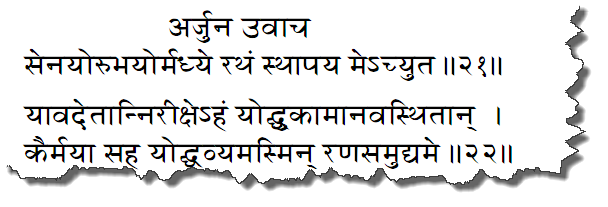
арджуна увача
сенайор убхайор мадхйе ратхам стхапайа ме 'чйута
йавад этан нирикше 'хам йоддху-каман авастхитан
каир майа саха йоддхавйам асмин рана-самудйаме
арджунах увача — Арджуна сказал; сенайох — армий; убхайох — двух; мадхйе — между; ратхам — колесницу; стхапайа — останови; ме — мою; ачйута — о непогрешимый; йават — пока; этан — на этих; нирикше — гляжу; ахам — я; йоддху-каман — желающих сражаться; авастхитан — выстроившихся на поле боя; каих — с которыми; майа — мной; саха — вместе; йоддхавйам — необходимость сражаться; асмин — в этой; рана — битвы; самудйаме — в попытке.
Арджуна сказал: О непогрешимый, прошу Тебя, выведи вперед мою колесницу и поставь ее между двумя армиями, чтобы я мог увидеть тех, кто пришел сюда, желая сразиться с нами, и с кем мне предстоит сойтись в этой великой битве.
ТЕКСТ 23
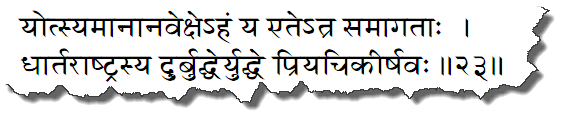
йотсйаманан авекше 'хам йа эте 'тра самагатах
дхартараштрасйа дурбуддхер йуддхе прийа-чикиршавах
йотсйаманан — на тех, кто будет сражаться; авекше — смотрю; ахам — я; йе — которые; эте — эти; атра — здесь; самагатах — собравшиеся; дхартараштрасйа — сына царя Дхритараштры; дурбуддхех — злонравного; йуддхе — в битве; прийа — успеха; чикиршавах — желающие.
Позволь мне взглянуть на тех, кто собирается сражаться с нами ради того, чтобы угодить злонравному сыну Дхритараштры.
ТЕКСТ 24
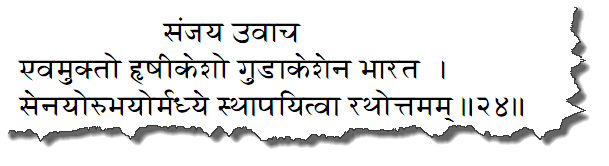
санджайа увача
эвам укто хршикешо гудакешена бхарата
сенайор убхайор мадхйе стхапайитва ратхоттамам
санджайах увача — Санджая сказал; эвам — таким образом; уктах — тот, к которому была обращена просьба; хршикешах — Господь Кришна; гудакешена — Арджуны; бхарата — о потомок Бхараты; сенайох — армий; убхайох — двух; мадхйе — между; стхапайитва — поставив; ратха-уттамам — чудесную колесницу.
Санджая сказал: О потомок Бхараты, в ответ на просьбу Арджуны Господь Кришна вывел вперед его чудесную колесницу и поставил ее между двумя армиями.
ТЕКСТ 25
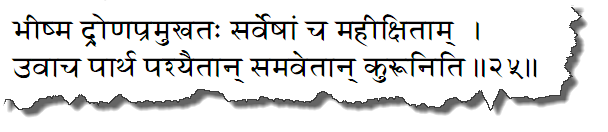
бхишма-дрона-прамукхатах сарвешам ча махи-кшитам
увача партха пашйаитан самаветан курун ити
бхишма — деда Бхишмы; дрона — учителя Дроны; прамукхатах — перед лицом; сарвешам — всех; ча — также; махи-кшитам — повелителей мира; увача — сказал; партха — о сын Притхи; пашйа — взгляни же; этан — на этих; самаветан — собравшихся; курун — членов рода Куру; ити — так.
Перед лицом Бхишмы, Дроны и всех повелителей мира Господь сказал: «Взгляни же, о Партха, на всех собравшихся здесь Куру».
ТЕКСТ 26
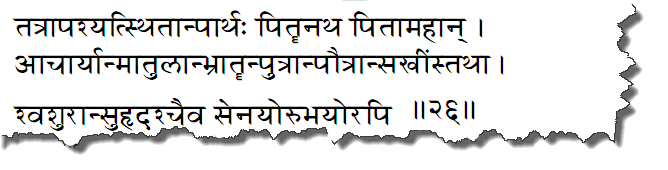
татрапашйат стхитан партхах питрн атха питамахан
ачарйан матулан бхратрн путран паутран сакхимс татха
швашуран сухрдаш чаива сенайор убхайор апи
татра — там; апашйат — увидел; стхитан — стоящих; партхах — Арджуна; питрн — отцов; атха — также; питамахан — дедов; ачарйан — учителей; матулан — дядьев по матери; бхратрн — братьев; путран — сыновей; паутран — внуков; сакхин — друзей; татха — также; швашуран — тестей; сухрдах — доброжелателей; ча — также; эва — безусловно; сенайох — армий; убхайох — обеих (враждующих сторон); апи — также.
Стоя между двумя армиями, Арджуна увидел в их рядах своих отцов, дедов, учителей, дядьев по матери, братьев, сыновей, внуков, друзей, а также тестей и доброжелателей.
ТЕКСТ 27

тан самикшйа са каунтейах сарван бандхун
авастхитан
крпайа парайавишто вишиданн идам абравит
тан — их; самикшйа — увидев; сах — он; каунтейах — сын Кунти; сарван — всех; бандхун — родственников; авастхитан — находящихся; крпайа — состраданием; парайа — огромным; авиштах — преисполненный; вишидан — сокрушающийся; идам — это; абравит — сказал.
Когда сын Кунти, Арджуна, увидел на поле
битвы всех своих друзей и родственников, сердце его преисполнилось
состраданием. Подавленный, он произнес такие слова.
ТЕКСТ 28
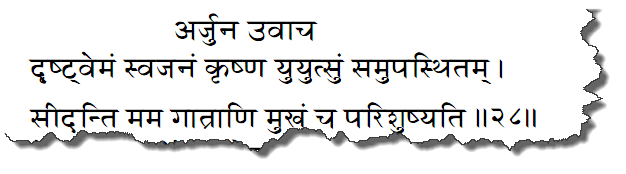
арджуна увача
дрштвемам сва-джанам кршна йуйутсум самупастхитам
сиданти мама гатрани мукхам ча паришушйати
арджунах увача — Арджуна сказал; дрштва — увидев; имам — эту; сва-джанам — родню; кршна — о Кришна; йуйутсум — воинственно настроенную; самупастхитам — расположенную; сиданти — дрожат; мама — мои; гатрани — члены тела; мукхам — рот; ча — и; паришушйати — пересыхает.
Арджуна сказал: О Кришна, видя перед собой друзей и родственников, горящих желанием сражаться, я чувствую, как у меня подкашиваются ноги, а во рту пересыхает.
ТЕКСТ 29
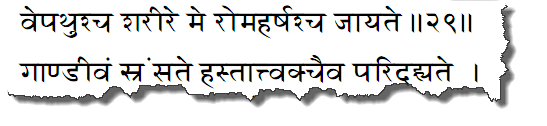
вепатхуш ча шарире ме рома-харшаш ча джайате
гандивам срамсате хастат твак чаива паридахйате
вепатхух — дрожь; ча — также; шарире — по телу; ме — моему; рома-харшах — поднятие волос дыбом; ча — также; джайате — происходит; гандивам — знаменитый лук Арджуны; срамсате — выпадает; хастат — из руки; твак — кожа; ча — также; эва — конечно; паридахйате — горит.
Тело мое охватила дрожь, волосы встали дыбом, лук Гандива выпадает из моих рук, а кожа пылает, как в огне.
ТЕКСТ 30
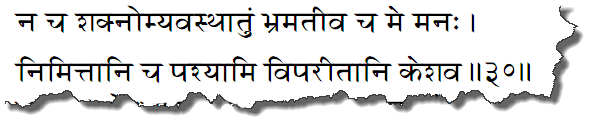
на ча шакномй авастхатум бхраматива ча ме манах
нимиттани ча пашйами випаритани кешава
на — не; ча — также; шакноми — могу; авастхатум — оставаться; бхрамати — забывает; ива — как будто; ча — и; ме — мой; манах — ум; нимиттани — причины; ча — также; пашйами — вижу; випаритани — противоположные; кешава — о Кришна, убивший демона Кеши.
Я более не в силах оставаться здесь. Память отказывает мне, и разум мой помутился. Все, что я вижу, предвещает одни лишь несчастья, о Кришна, сразивший демона Кеши.
ТЕКСТ 31

на ча шрейо 'нупашйами хатва сва-джанам ахаве
на канкше виджайам кршна на ча раджйам сукхани ча
на — не; ча — также; шрейах — хорошее; анупашйами — предвижу; хатва — убив; сва-джанам — свою родню; ахаве — в битве; на — не; канкше — желаю; виджайам — победу; кршна — о Кришна; на — не; ча — также; раджйам — царство; сукхани — радости (завоеванные такой ценой); ча — также.
Я не понимаю, какое благо я получу, убив в этом сражении своих сородичей. Ни победа, ни царство, ни счастье, доставшиеся такой ценой, не нужны мне, о Кришна.
ТЕКСТЫ 32–35
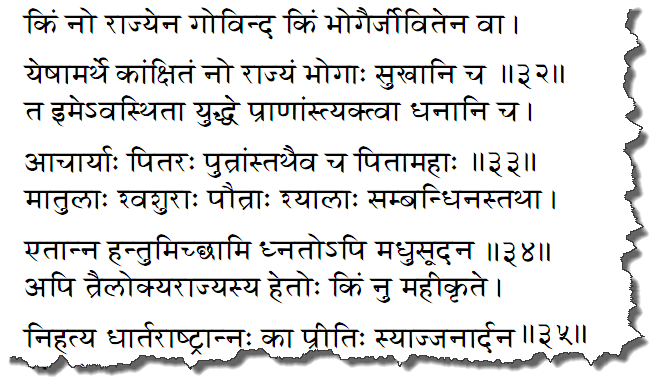
ким но раджйена говинда ким бхогаир дживитена ва
йешам артхе канкшитам но раджйам бхогах сукхани ча
та име 'вастхита йуддхе пранамс тйактва дханани ча
ачарйах питарах путрас татхаива ча питамахах
матулах швашурах паутрах шйалах самбандхинас татха
этан на хантум иччхами гхнато 'пи мадхусудана
апи траилокйа-раджйасйа хетох ким ну махи-крте
нихатйа дхартараштран нах ка притих сйадж джанардана
ким — что; нах — нам; раджйена — царством; говинда — о Кришна; ким — что; бхогаих — наслаждениями; дживитена — жизнью; ва — или; йешам — которых; артхе — с целью; канкшитам — желаемое; нах — наше; раджйам — царство; бхогах — материальные наслаждения; сукхани — радости; ча — также; те — они; име — эти; авастхитах — находящиеся; йуддхе — на поле боя; пранан — жизни; тйактва — отдав; дханани — богатства; ча — также; ачарйах — учителя; питарах — отцы; путрах — сыновья; татха — также; эва — безусловно; ча — и; питамахах — деды; матулах — дядья по матери; швашурах — тести; паутрах — внуки; шйалах — зятья, шурины; самбандхинах — родственники; татха — затем; этан — эти; на — не; хантум — убивать; иччхами — желаю; гхнатах — убитый; апи — даже; мадхусудана — о Кришна, сразивший демона Мадху; апи — даже; траи-локйа — охватывающего три мира; раджйасйа — царства; хетох — с целью; ким ну — что же; махи-крте — для земли; нихатйа — убив; дхартараштран — сыновей Дхритараштры; нах — нам; ка — какая; притих — радость; сйат — будет; джанардана — о хранитель всех живых существ.
О Говинда, зачем нам царство, счастье, да и сама жизнь, если все те, ради кого мы стремимся обладать этим, собрались сейчас на поле битвы? О Мадхусудана, когда учителя, отцы, сыновья, деды, дядья по матери, тести, внуки, зятья, шурины и другие родственники стоят передо мной, готовые расстаться с жизнью и потерять все, могу ли я желать их смерти, даже если иначе они убьют меня? О хранитель всех живых существ, я не хочу сражаться с ними даже в обмен на все три мира, не говоря уже о Земле. Много ли радости принесет нам уничтожение сыновей Дхритараштры?
ТЕКСТ 36
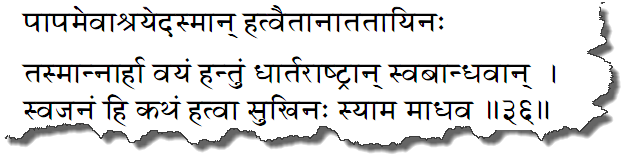
папам эвашрайед асман хатваитан ататайинах
тасман нарха вайам хантум дхартараштран са-бандхаван
сва-джанам хи катхам хатва сукхинах сйама мадхава
папам — грех; эва — безусловно; ашрайет — ляжет; асман — на нас; хатва — убив; этан — этих; ататайинах — напавших на нас; тасмат — поэтому; на — не; архах — должны; вайам — мы; хантум — убивать; дхартараштран — сыновей Дхритараштры; са-бандхаван — и наших друзей; сва-джанам — родню; хи — конечно; катхам — как; хатва — убив; сукхинах — счастливые; сйама — станем; мадхава — о Кришна, супруг богини удачи.
Убив тех, кто грозит нам сейчас войной, мы покроем себя грехом. Поэтому нам нельзя убивать сыновей Дхритараштры и своих друзей. Чего мы добьемся этим, о Кришна, супруг богини удачи? Как может смерть родственников принести нам счастье?
ТЕКСТЫ 37–38
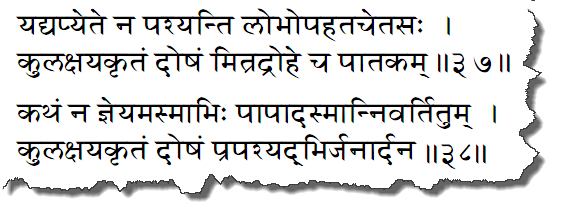
йадй апй эте на пашйанти лобхопахата-четасах
кула-кшайа-кртам дошам митра-дрохе ча патакам
катхам на джнейам асмабхих папад асман нивартитум
кула-кшайа-кртам дошам прапашйадбхир джанардана
йади — если; апи — даже; эте — эти; на — не; пашйанти — видят; лобха — алчностью; упахата — охвачены; четасах — те, чьи сердца; кула-кшайа — уничтожением семьи; кртам — совершенный; дошам — грех; митра-дрохе — в распре с друзьями; ча — также; патакам — результат греха; катхам — как; на — не; джнейам — то, что должно быть известно; асмабхих — нами; папат — от греха; асмат — нас; нивартитум — остановить; кула-кшайа — истреблением рода; кртам — совершенное; дошам — преступление; прапашйадбхих — теми, кто видит; джанардана — о Кришна.
О Джанардана, пусть эти люди, чьими сердцами завладела жадность, не видят греха в убийстве родственников или в распрях с друзьями, но почему мы, зная о том, каким тяжким преступлением является уничтожение рода, должны участвовать в этом злодействе?
ТЕКСТ 39
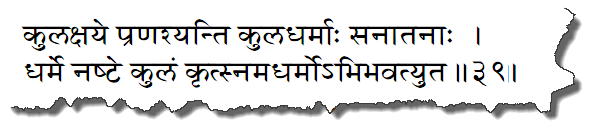
кула-кшайе пранашйанти кула-дхармах санатанах
дхарме наште кулам кртснам адхармо 'бхибхаватй ута
кула-кшайе — при уничтожении рода; пранашйанти — исчезают; кула-дхармах — семейные традиции; санатанах — вечные; дхарме — когда религия; наште — разрушена; кулам — семья; кртснам — вся; адхармах — безбожие; абхибхавати — становится; ута — ведь (сказано).
Истребление рода приводит к разрушению извечных семейных традиций, а члены семьи, оставшиеся в живых, забывают законы религии.
ТЕКСТ 40
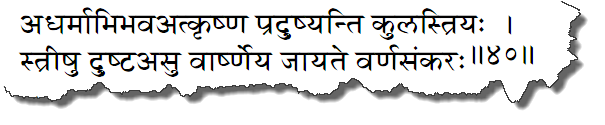
адхармабхибхават кршна прадушйанти кула-стрийах
стришу душтасу варшнейа джайате варна-санкарах
адхарма — безбожия; абхибхават — от воцарившегося; кршна — о Кришна; прадушйанти — оскверняются; кула-стрийах — женщины рода; стришу — у женщин; душтасу — развращенных; варшнейа — о потомок Вришни; джайате — рождается; варна-санкарах — нежеланное потомство.
Когда в роду воцаряется безбожие, о Кришна, женщины в нем развращаются, а развращение женщин, о потомок Вришни, приводит к появлению на свет нежеланного потомства.
ТЕКСТ 41
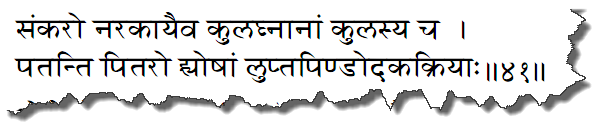
санкаро наракайаива кула-гхнанам куласйа ча
патанти питаро хй эшам лупта-пиндодака-крийах
санкарах — нежеланное потомство; наракайа — в ад; эва — безусловно; кула-гхнанам — тех, кто уничтожает семью; куласйа — семьи; ча — также; патанти — падают; питарах — предки; хи — конечно; эшам — этих; лупта — прекращены; пинда — подношения пищи; удака — и воды; крийах — обряды.
Рост числа нежеланных детей неизбежно приводит к тому, что члены семьи и люди, разрушающие семейные традиции, попадают в ад. С вырождением рода, праотцов ждет падение, ибо потомки перестают подносить им пищу и воду.
ТЕКСТ 42
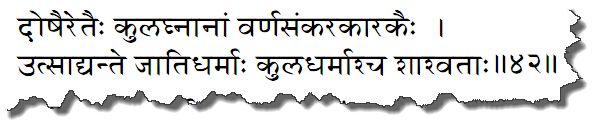
дошаир этаих кула-гхнанам варна-санкара-каракаих
утсадйанте джати-дхармах кула-дхармаш ча шашватах
дошаих — грехами; этаих — этими; кула-гхнанам — разрушающих семью; варна-санкара — нежеланного потомства; каракаих — причинами появления; утсадйанте — прекращаются; джати-дхармах — деяния на благо общества; кула-дхармах — семейные традиции; ча — также; шашватах — незыблемые.
Прегрешения тех, кто разрушает семейные традиции и способствует появлению нежеланных детей, останавливают деятельность на благо семьи и общества в целом.
ТЕКСТ 43
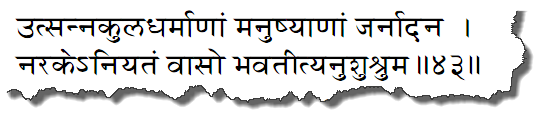
утсанна-кула-дхарманам манушйанам джанардана
нараке нийатам васо бхаватитй анушушрума
утсанна — разрушены; кула-дхарманам — тех, чьи семейные традиции; манушйанам — людей; джанардана — о Кришна; нараке — в аду; нийатам — вечно; васах — пребывание; бхавати — происходит; ити — так; анушушрума — слышал (от наставников, принадлежащих к цепи духовных учителей).
О Кришна, хранитель рода человеческого, от наставников, принадлежащих к цепи духовных учителей, я слышал, что те, чьи семейные традиции разрушены, навеки поселяются в аду.
ТЕКСТ 44
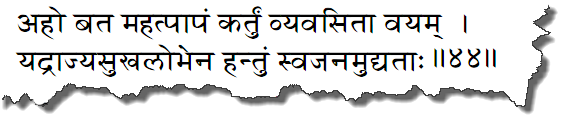
ахо бата махат папам картум вйавасита вайам
йад раджйа-сукха-лобхена хантум сва-джанам удйатах
ахо — увы; бата — как странно; махат — величайший; папам — грех; картум — совершить; вйаваситах — решившие; вайам — мы; йат — поскольку; раджйа-сукха-лобхена — из-за желания наслаждаться царством; хантум — убить; сва-джанам — родню; удйатах — пытающиеся.
Не странно ли, что и мы сейчас замышляем тягчайший грех? Движимые желанием насладиться радостями царствования, мы готовы убить своих близких.
ТЕКСТ 45
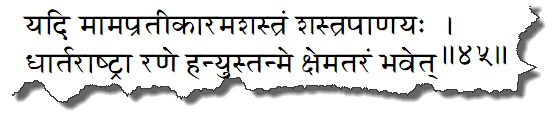
йади мам апратикарам ашастрам шастра-панайах
дхартараштра ране ханйус тан ме кшематарам бхавет
йади — если; мам — меня; апратикарам — не оказывающего сопротивления; ашастрам — безоружного; шастра-панайах — те, кто с оружием в руках; дхартараштрах — сыновья Дхритараштры; ране — на поле боя; ханйух — пусть убьют; тат — то; ме — для меня; кшема-тарам — лучше; бхавет — будет.
Пусть лучше сыновья Дхритараштры с оружием в руках убьют меня на поле боя, безоружного и не сопротивляющегося.
ТЕКСТ 46
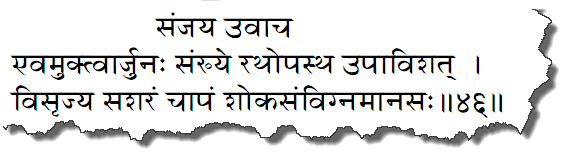
санджайа увача
эвам уктварджунах санкхйе ратхопастха упавишат
висрджйа са-шарам чапам шока-самвигна-манасах
санджайах увача — Санджая сказал; эвам — так; уктва — промолвив; арджунах — Арджуна; санкхйе — на поле боя; ратха — колесницы; упастхе — на сиденье; упавишат — опустился; висрджйа — отбросив; са-шарам — со стрелами; чапам — лук; шока — горем; самвигна — пораженный; манасах — тот, чей ум.
Санджая сказал: Промолвив это на поле боя, Арджуна отбросил в сторону лук и стрелы и сел в колеснице, охваченный скорбью.


